Meet QuickLink. From an order ready for pickup to a confirmed delivery.
QuickLink brings vendors, delivery companies and their drivers into one delivery workflow. The vendor prepares the shipment, the driver accepts and completes the delivery, and the delivery company manages its team, partnerships and settlements.
This guide explains what to prepare before registering, how to connect with partners and what your first delivery involves. Choose your role and follow the steps to get started.
Enables QuickLink in the store administration, sets the pickup location and accepted vehicles, establishes a partnership with a delivery company and marks orders as ready. Tracks the assigned driver, confirms handover and reviews settlements.
Is the contracting party for delivery and settlement. The account owner manages business details, delivery cities, team members, partnerships with multiple vendors and price lists. Owners who also make deliveries can be registered as drivers too.
Sets personal details, vehicle and working hours in the app. During a shift, receives offers, accepts deliveries, opens navigation and confirms pickup and handover with a code or QR code.
The business partnership belongs to the delivery company or sole trader. Drivers work as approved members of that business. One delivery company can work with several vendors, and one vendor with several delivery companies.
What should you prepare before starting?
For the delivery business
Business name and legal form — company or sole trader.
OIB (Croatian personal identification number), registered address and business contact details.
Details of the responsible person and the cities where you deliver.
JEER registration number, if already assigned, and the information required for verification and approval.
A price list by vehicle type and distance band, and settlement settings.
For the driver
First and last name, email address and a mobile number that can receive the SMS verification code.
The OIB of the existing delivery business if you are joining one.
Vehicle type and registration plate, where required.
Preferred working hours and, optionally, a profile picture.
A phone with internet access and location enabled for availability on the map.
OPENING THE APP FOR THE FIRST TIME
Registration, step by step
01
Choose your language and currency
Customise the app on first launch. Your selection is saved and can be changed later in your account settings.
02
Create a business or join an existing one
For a new company or sole trader, enter the business details and JEER number if you have one. To join a registered delivery business, enter its OIB. The system checks whether the business exists using the OIB and fills in its name.
If the OIB is not found, check the digits and whether the delivery business is already registered. You do not need a separate business registration for each driver.
03
Enter your personal details
Enter your first and last name. The owner of a new business also indicates whether they personally make deliveries, so the system can enable the appropriate features.
04
Set your working hours
Choose the start and end of your shift. You can edit the schedule later; it controls your availability for new deliveries.
05
Choose your vehicle
Select the vehicle you actually use for deliveries and enter its registration plate if requested. The vehicle must meet the shipment requirements.
06
Verify your contact details and submit the request
Enter your email, phone number and password, then verify your phone number with the six-digit SMS code. Once registration is complete, the account or membership awaits approval.
SMS verification confirms your phone number, not your approval to deliver. To start work, you need an approved delivery business, active driver membership and an accepted vendor partnership. An administrator checks the business details and required registration records.
QuickLink for Android has been submitted for publication on Google Play. We will add the public installation link once it is approved. Contact Connect support for the current access options.
PREPARATION ON THE STORE SIDE
What does the vendor need to set up?
01
Open the Quick Link tab
In your vendor settings, open the Quick Link tab and enable cooperation with delivery companies. Also check that the appropriate shipping method is enabled for QuickLink.
02
Check the pickup address
The default pickup location follows the vendor’s current main address unless you select a separate location. After changing the address, check the pin on the map too. Old coordinates must not be used for a new address.
When Stores & Warehouses is used, the actual fulfilment location takes priority over the default location. For an order fulfilled from several warehouses, check the separate delivery plan for each warehouse before sending offers.
03
Define accepted vehicles
Set the default vehicles for your catalogue. For individual products, the Shipping tab allows a different selection, such as a refrigerated vehicle. The driver’s vehicle must meet the requirements of every product in the delivery.
New products without their own setting inherit the vendor’s selection. Applying defaults to all existing products can overwrite individual changes, so review the warning before confirming.
04
Agree partnerships and prices
Under Delivery partnerships, invite a delivery company or accept its invitation. Review the price list before the first delivery. You can also open incoming invitations from administration notifications.
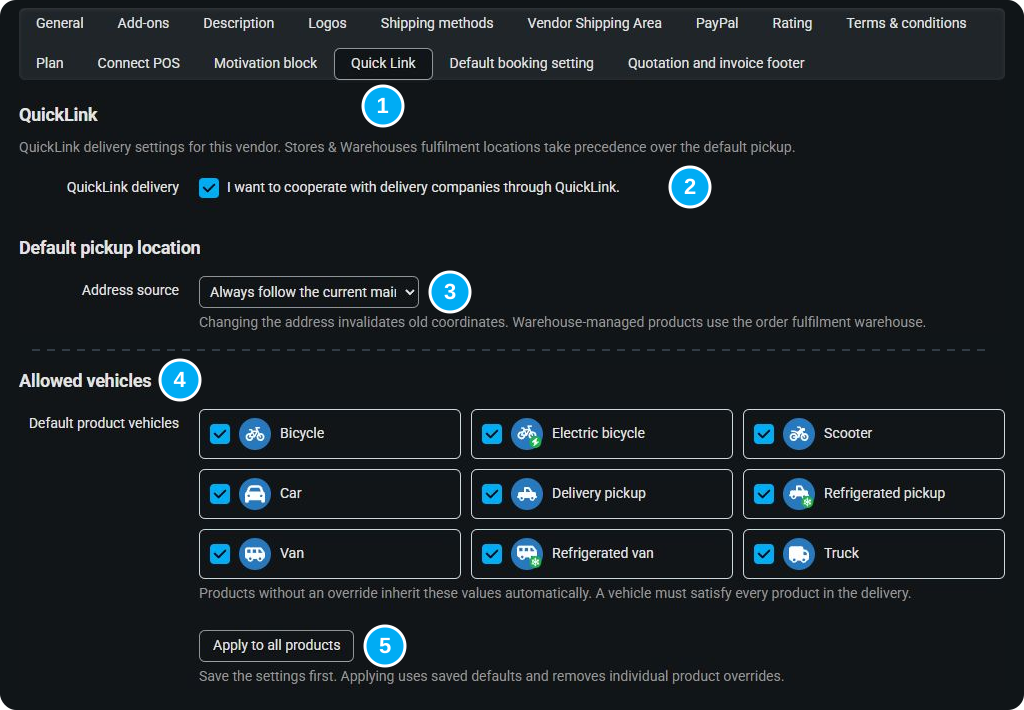
Two English settings excerpts in one image, without vendor data — click to enlarge.
Image key:1. Open the Quick Link tab. 2. Enable cooperation with delivery companies. 3. Check the address source, pickup address and map position. 4. Select allowed vehicles. 5. If needed, apply the saved settings to existing products; this clears their individual vehicle selections. First save your changes using Save at the top of the page.
How is a partnership established?
Either the vendor or the delivery company can send an invitation. The partnership becomes active only when the other party accepts it. Invitations and responses are recorded in the system, with email notifications.
Green indicator
An accepted partnership is already in place. Approved, available drivers from that delivery company can receive eligible offers.
Orange indicator
There is no partnership yet, but the other party is open to cooperation. Send an invitation and follow the response.
Grey indicator
The other party is not interested in this service. Invitations cannot be sent.
Partner lists depend on location: vendors see delivery companies covering their city, while delivery companies see vendors in their delivery cities. Delivery companies should therefore keep their list of delivery cities up to date.
Either party can end the partnership. New offers between those partners stop, while deliveries already accepted can still be completed.
Delivery company price list
The owner enters prices by vehicle type and kilometre band, for example separate bands of 0–3 km and 3–7 km. Prices are recorded as net amounts with VAT shown separately. This price list applies to the company’s deliveries regardless of which driver carries them out. Vendors open it using the button in the partnership overview.
AVAILABILITY FOR NEW OFFERS
Shift, vehicle and location sharing
Drivers manage their vehicle, registration plate, profile picture and working hours in their profile. Available vehicles are bicycle, electric bicycle, scooter, car, delivery pickup, refrigerated pickup, van, refrigerated van and truck. Motor vehicles require a registration plate; electric bicycles are exempt from that field.
Green — available
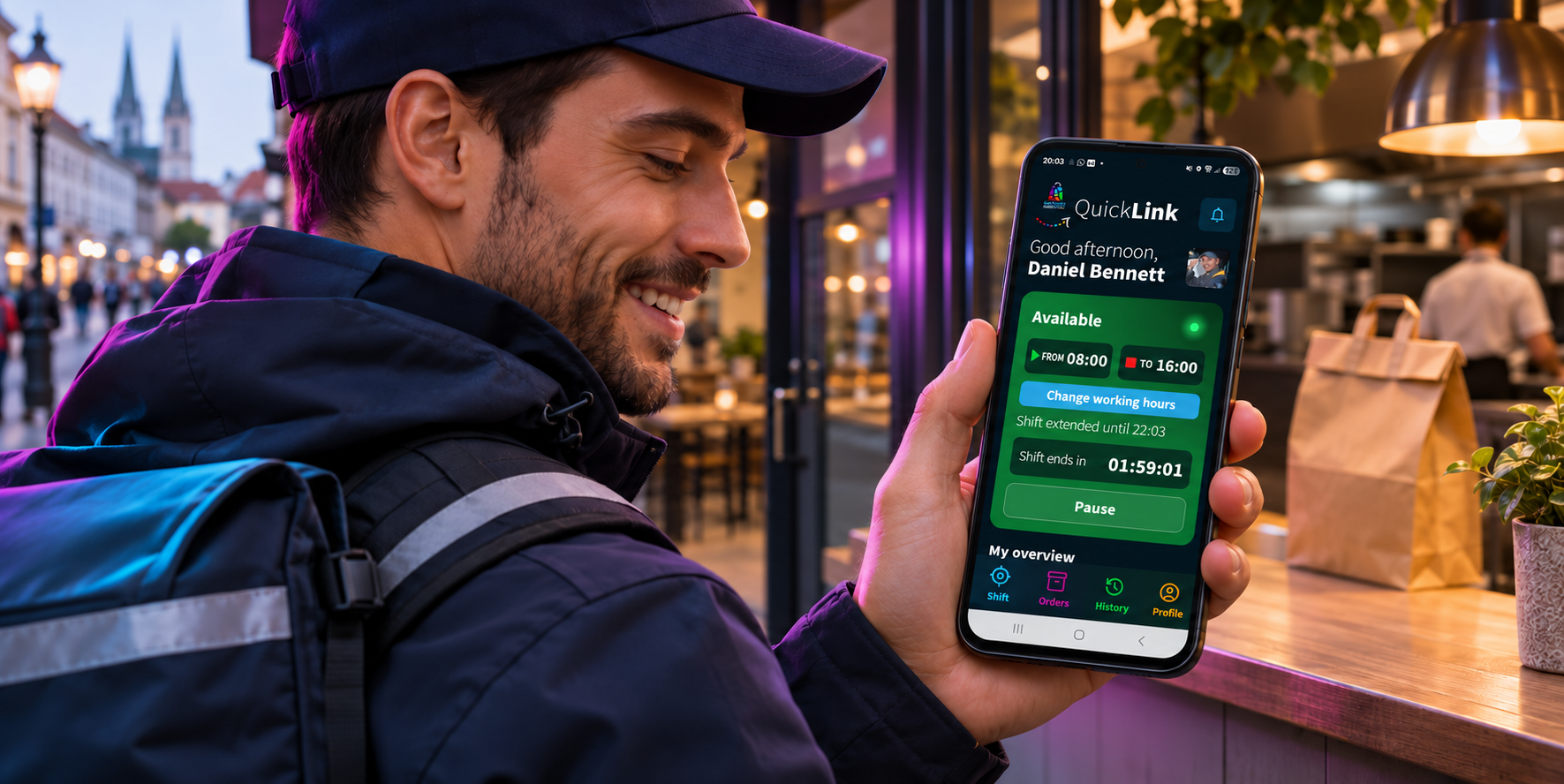
The shift is active. Start time, end time and remaining time are displayed. With location sharing enabled and permissions granted, the system can show the driver on the map.
Yellow — on a break
A break stops availability for new offers and shows how long the break has lasted. The driver resumes the shift using the resume button.
Red — inactive
Outside working hours, the driver is unavailable for new offers. When the shift ends, the driver can choose an extension duration using Extend my shift.
Location sharing is enabled in settings. The app first explains who sees your location and why, then requests device permissions. Your choice is saved until you turn it off manually; location updates follow the active shift and stop during breaks, after the shift ends or on logout.
Tracking while the app runs in the background requires the appropriate location permission. Allow notifications and check the sound for offers and targeted invitations. The phone needs internet access; simply having the app open without a valid location does not establish availability for pickup.
FROM SHIPMENT PREPARATION TO HANDOVER
What does a delivery involve?
01
The vendor prepares the order
Checks availability, prepares the products and packaging, and verifies the full pickup and delivery addresses. The New status alone does not call drivers.
02
Ready for delivery
When the package is actually ready, the vendor selects Ready for delivery. The order then becomes a QuickLink offer for eligible drivers from companies with an accepted partnership.
The vendor can open the driver selection and invite one or more drivers directly. The selection map shows eligible available drivers with a recent location within an 8 km straight-line radius of the pickup location.
03
Driver assigned
The first driver to successfully accept the offer gets the delivery. The status changes to Driver assigned (QuickLink). The driver sees shipment details, addresses, item count, weight if entered and total order value. The navigation button opens Maps towards pickup.
The order value shown on the delivery is neither the driver’s earnings nor the delivery service price.
04
Pickup confirmation — On the way
When physically handing over the package, the vendor shows the pickup QR code or provides the four-digit code. The driver scans the QR or enters the code in the app. Successful confirmation records the pickup time and changes the status to On the way (QuickLink).
The driver then sees a call-customer button, when a phone number is available, and navigation to the delivery address. The customer receives a code and QR code by email to confirm handover.
05
Handover — Complete
After physically handing the shipment to the recipient, the driver scans their QR code or enters the confirmation code. The delivery is recorded as completed and the order status becomes Complete. The data remains in the history and enters the relevant settlement records.
Use codes at the moment of handover. The pickup QR and code confirm collection from the vendor; a separate delivery QR and code confirm handover to the recipient. Do not confirm a step before the shipment has actually been handed over.
Notifications, targeted invitations and messages
In the app
The bell opens Notifications and messages: order notifications, account changes, partnerships and conversations with administration or authorised partners. Opening a notification marks it as read; individual notifications can be deleted.
Specifically selected drivers receive a prominent invitation with delivery details and Accept and Decline buttons. Background display and sound also depend on phone permissions and settings.
In administration
The driver map combines location, profile picture, vehicle and registration plate. Clicking a driver’s map marker opens the conversation; selecting a driver in the right-hand list selects and zooms to their location. For an inactive driver, the conversation can be opened beside their entry in the list.
The icon above the vehicle shows activity: an orange arrow means travelling to pickup, and a dark green bag means travelling with a collected shipment. No additional activity icon appears without an active delivery.
What if a delivery cannot be completed?
If the customer is unavailable or another problem arises, open the accepted delivery details and use the option to withdraw from or cancel the delivery. Choose a reason from the administrator’s list and confirm. The reason and progress remain recorded.
For a shipment you have already collected, immediately agree the next steps with the vendor or the delivery company’s responsible person. Cancelling in the app does not itself resolve package returns, customer refunds or other business obligations. Do not confirm handover if the shipment has not been delivered.
BUSINESS OVERVIEW
Delivery prices, driver remuneration and settlements
Vendor price list
Determines what the delivery company charges for delivery by vehicle and kilometre band. Settlement uses the road route from pickup to handover. A delivery without a confirmed distance or applicable price needs additional information before final settlement.
Driver work model
The owner specifies whether an employee is salaried or paid based on performance. For performance-based pay, a shared or individual gross remuneration price list is selected by vehicle and distance band. This is separate from the delivery company’s price list for vendors.
Role-based view
Owners see company-wide results, their own deliveries, driver activity and the corresponding amounts. Drivers see data according to their role and work model; gross remuneration is not net salary paid out.
In the app, Accounting is divided into earnings per successful delivery and payments. Daily settlement creates the relevant payment orders, while settlement documents for vendors can be grouped daily, weekly or monthly according to the delivery company’s settings.
Frequency, IBAN, payment terms and remuneration models are managed in the delivery company’s settings. The accounting overview contains settlement documents and their deliveries. Vendors see their documents and can record payment; the delivery company confirms receipt or disputes the mark. The vendor’s mark reduces the recorded debt, while a dispute adds that amount back.
QuickLink currently maintains settlement records and documents. It does not execute bank transfers or salary payments. Issuing statutory invoices and e-invoices through a connected accounting system is not included at this stage.
Checklist before your first delivery
The delivery business is approved and the driver is an active member of the correct company.
The vendor partnership is accepted and the delivery city is set correctly.
The vendor has enabled QuickLink and an appropriate shipping method.
The pickup address and location, and the full delivery address, are correct.
The vehicle meets the product requirements, including refrigeration if needed.
The shift is active, the location is recent and notifications are allowed.
Price lists are saved and a confirmed road distance is available for settlement.
The vendor and recipient know how to present the appropriate QR or confirmation code.
Frequently asked questions when getting started
I verified my phone by SMS. Why can’t I deliver yet?
SMS verifies your phone. Check whether the account, business or membership is awaiting approval. To work, the driver must be linked to an approved delivery business.
Why can’t I see a new order?
Check the Ready for delivery status, accepted partnership, city, allowed vehicle and active shift. Targeted selection on the map also checks location freshness and an 8 km radius from pickup. If the problem persists, give support the order number and driver account.
Can I change my vehicle or working hours?
Yes, in your profile or delivery settings. Enter the actual vehicle and registration plate when requested. Changes may affect which offers you qualify for.
Why is the driver not visible on the map?
Check the shift, break, saved sharing preference, location permissions, internet connection and the age of the last location. For operation with the screen locked, also check background location permission.
Does everyone get a delivery if the vendor invites several drivers?
No. Several selected drivers can receive an invitation, but the first one to successfully accept gets the delivery. Others can no longer accept a delivery that has already been assigned.
The customer has not received the handover code. What should we check?
Check that pickup is confirmed and the status is On the way, that the customer’s email address is correct and whether the message is in spam. If the email is missing, contact the vendor or support; do not enter a random code.
Has the amount on a payment order already been paid?
Not necessarily. A payment order is a settlement record. Check payment status and receipt confirmation, and verify the actual transfer in your banking and accounting systems.